For DJs and MCs
Your night on LIFEFM.
Three things to do in the studio, how to find your show on the schedule, and everything that comes with playing here. Five minutes, once.
In the studio
Do these on the studio screen, or on the green room screen while the set before yours is on. The crew checks each one, then the website updates by itself.
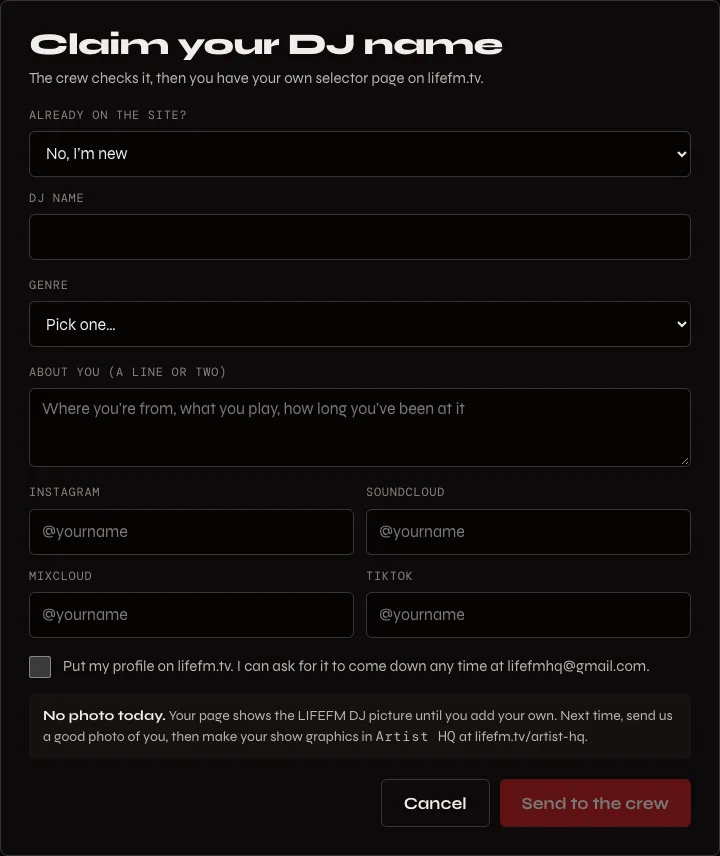
1. Claim your DJ name
At the top of the studio screen, under DJs · start here, tap Claim your DJ name. Fill in your DJ name, your genre, a line about you, and your Instagram, SoundCloud, Mixcloud and TikTok. Then Send to the crew.
No photo in the studio. Your page shows the LIFEFM DJ picture until you add your own: send us a good photo of you, then make your show graphics in Artist HQ.
Already on the site? Pick your name under Already on the site? and you’re updating your page, not making a new one.
The crew checks it, then you have your own page at lifefm.tv/djs/your-name.
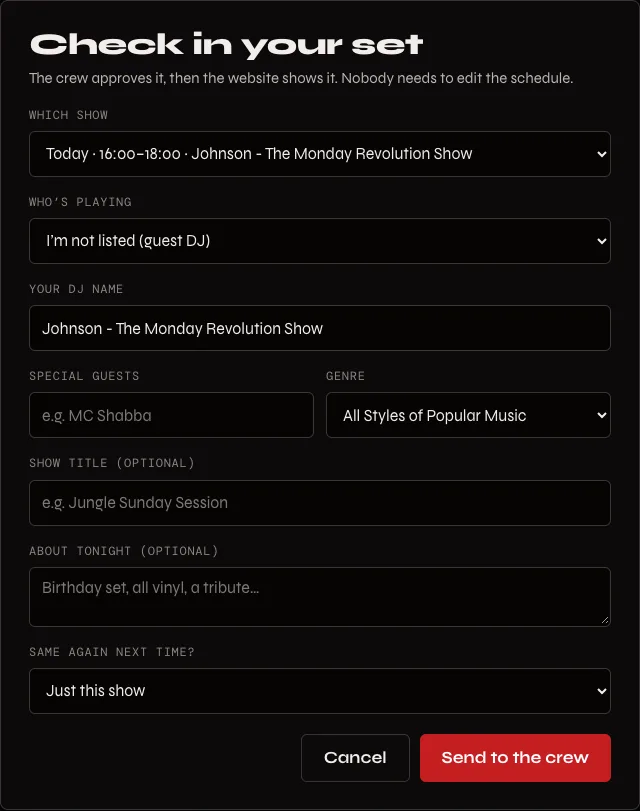
2. Check in your set
Playing tonight? Tap the red Check in your set button. Under Which show, pick your slot (it starts on the one that’s on now). Under Who’s playing, pick your name, or I’m not listed and type it.
Add any special guests and MCs, your genre, a show title, and a line about tonight. Then Send to the crew.
Play the same slot every week? Set Same again next time? to Every week, Every 2 weeks or Once a month, and your name and title go on your shows ahead too. Fill it in once.
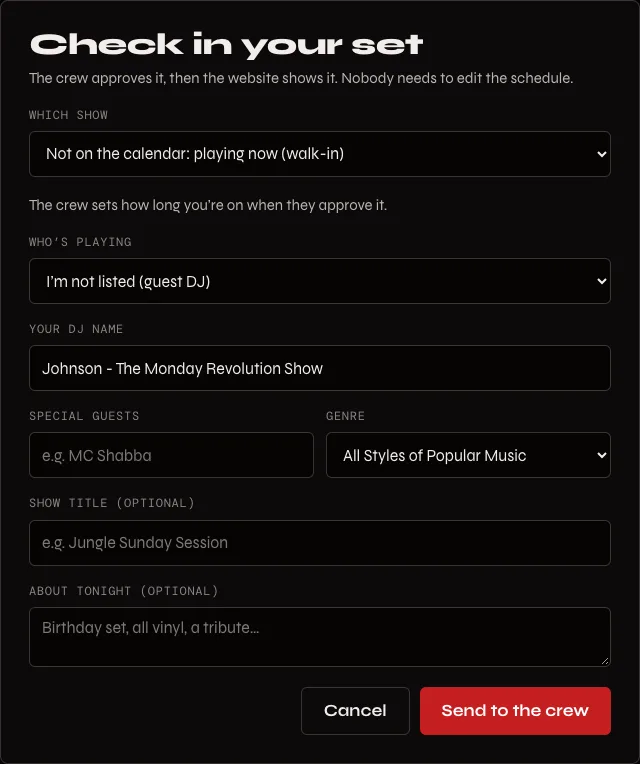
Not on the calendar?
Passing through, or filling in? Pick Not on the calendar: playing now (walk-in) at the bottom of Which show. The crew adds you to the schedule from now when they approve it, and sets how long you’re on.
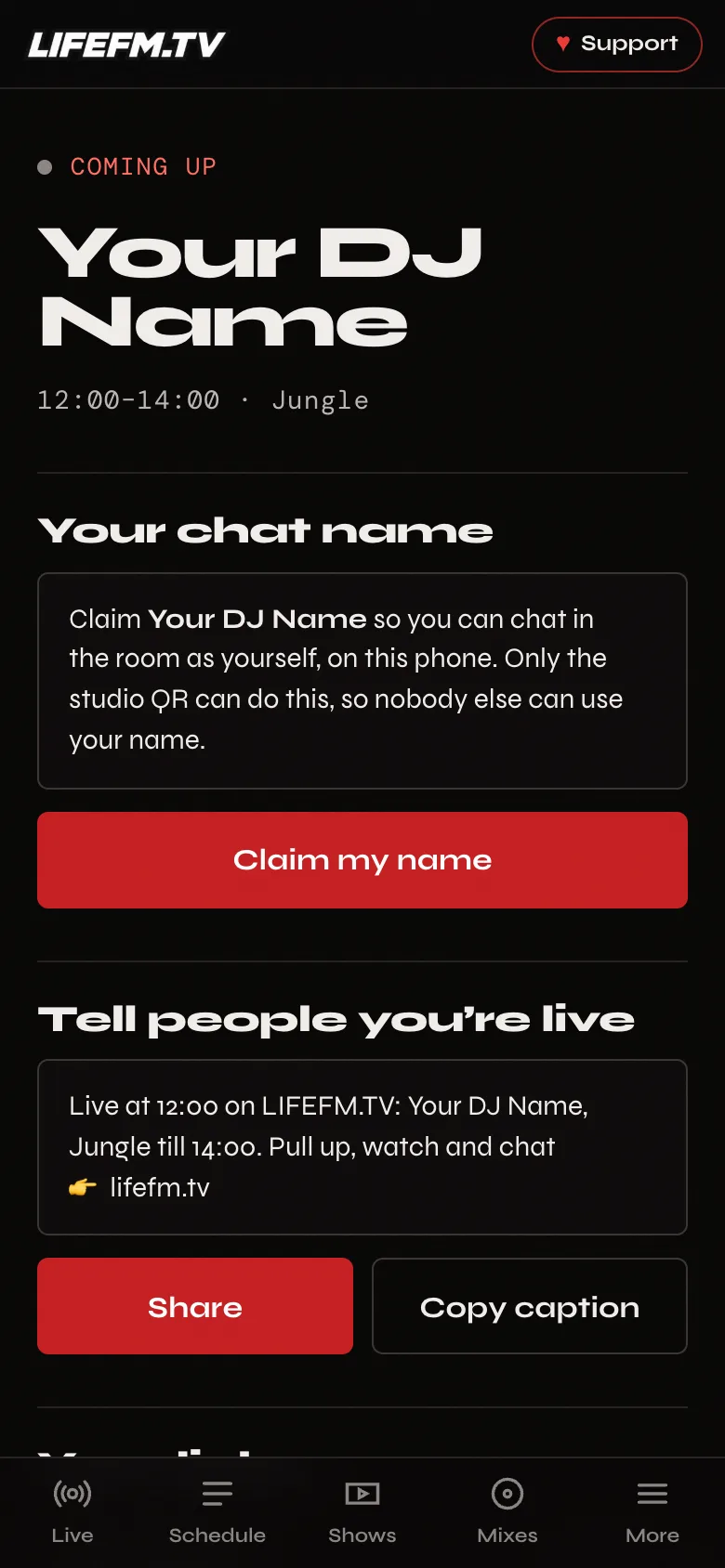
3. Scan to share your set
During your set, scan the QR under the two buttons (Scan to share your set) with your phone. Tap Claim my name.
Now you’re in the chat as yourself, with your selector badge, and nobody else can use your name. Only the studio QR can do this, during your own show.
The same page gives you a ready-made caption with a Share button, your links, and who’s on after you.
On a laptop too? In the chat on your phone, tap other device under the message box. On the laptop, open the chat, tap Have a code? and type your name and the code.
The studio screen
It sits by the decks for your whole set. Here’s what’s on it.
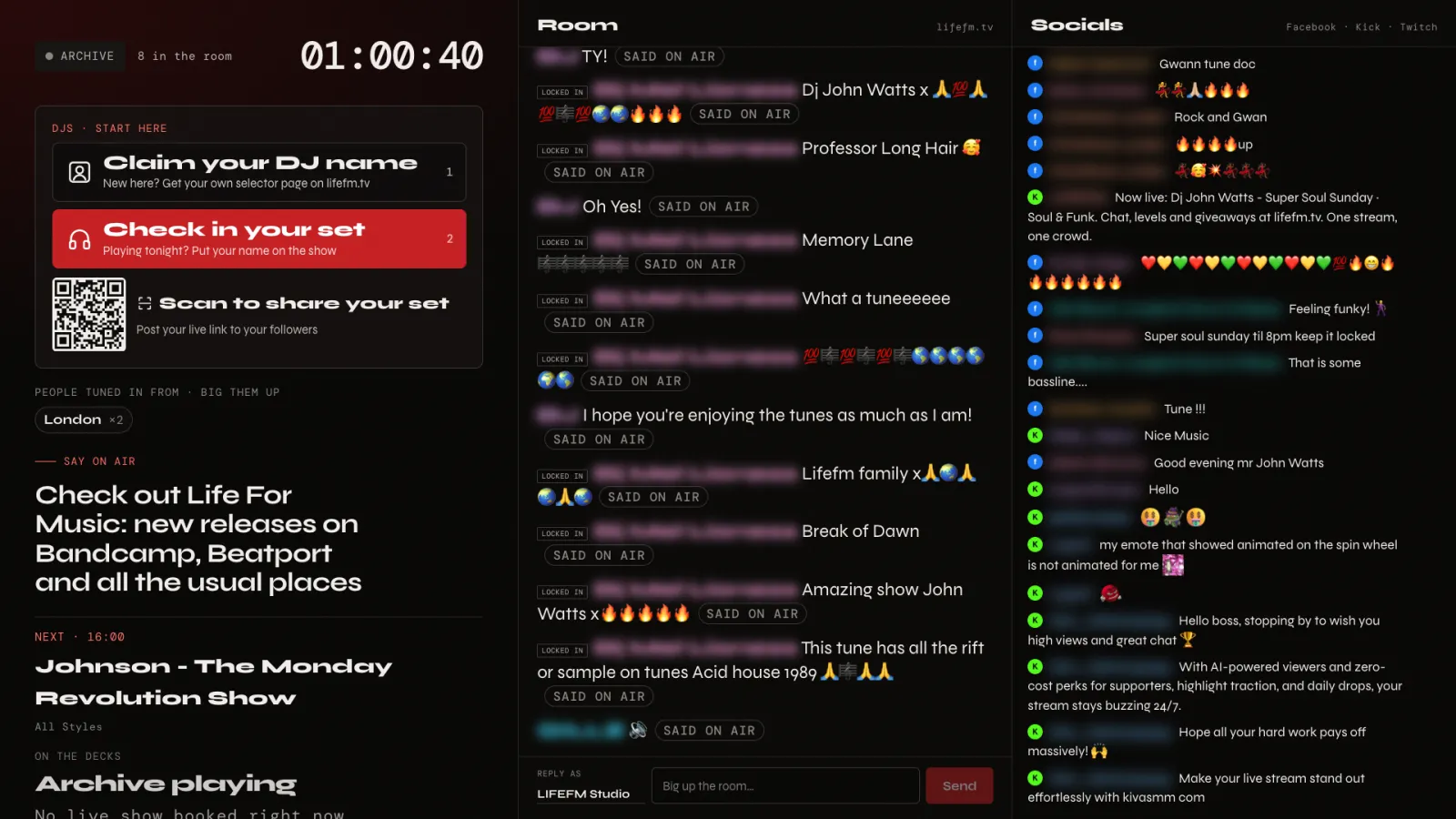
- DJs · start here: at the top. Claim your DJ name, Check in your set, and the QR to scan to share your set.
- People tuned in from: where the room is listening from right now. Big them up on the mic.
- Say on air: a short line to read out between tunes. It changes every so often.
- Next and On the decks: who’s on after you, then you, your genre and how long is left.
- Room: the chat on lifefm.tv, big enough to read from the decks. Scroll up to read back. Shout people out by name.
- Socials: comments from people watching on Facebook, Kick and Twitch.
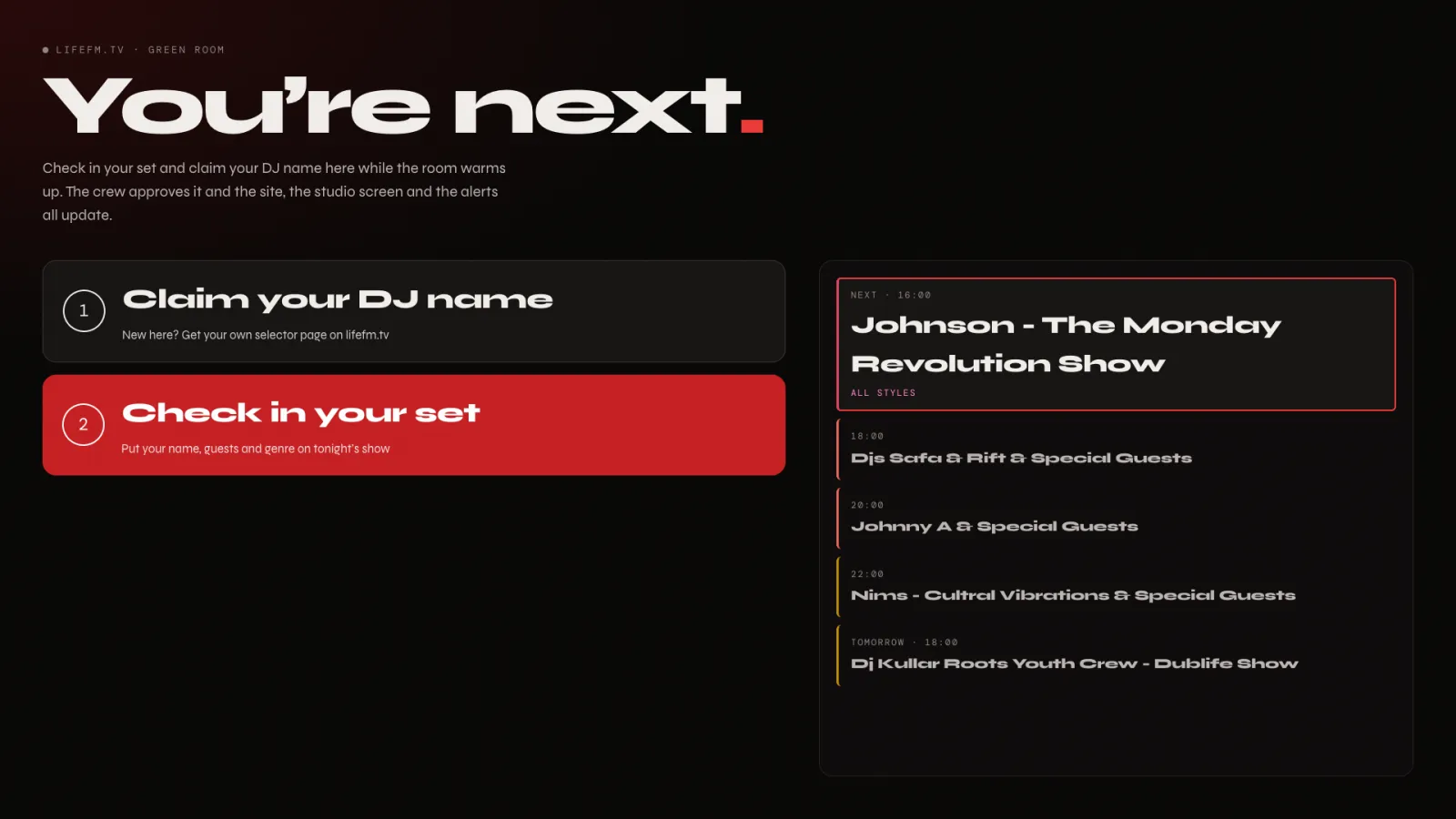
The green room screen, for the next DJ: the same two buttons, and the rest of today’s shows.
The schedule
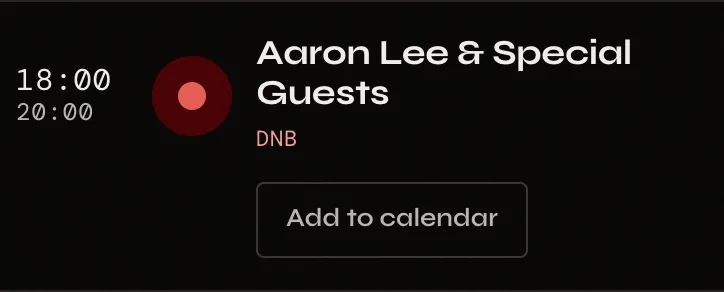
Your shows are on lifefm.tv/schedule, two weeks ahead. All times are London time.
- Tap a day to see its shows. Your name, genre and show title come from Check in your set.
- Add to calendar puts your show in your phone’s calendar, with a reminder.
- Tell your listeners to tap Notify me on your show: they get an alert when you go live.
- Something wrong, or can’t make it? Tell the crew as early as you can, at least 48 hours before.
What you get
Most of it lives in Artist HQ. The tools that are just yours open once your phone has your name (step 3 above).
Your page
Photo, bio, links, your shows and mixes, at lifefm.tv/djs/your-name.
Your recordings
Download the video and MP3 of your sets: Artist HQ › Downloads.
Run it back
Your sets go on Shows and Mixes, and play again in the daytime programme.
Your name in the chat
Your selector badge, and a shout-out pinned at the top of the chat while you’re on.
My chart
Your top 10 and a note to your listeners, on your page.
My listeners
Who shows up for you, your show stats, and a favourite badge to give your regulars.
Show graphics
Make your show image in Artist HQ › Create, and send your flyers for the stream.
Write
Words for lifefm.tv: a story, a scene, a tune that changed it for you.
In the booth
A short interview after your set, straight off the decks.
In the game
Be a DJ players can sign in DEAD AIR, our pirate radio game.
Open Artist HQSee the scheduleNot on the station yet? Submit a show

